Raspberry Pi
System requirements
- Raspberry Pi running Raspberry Pi OS
- Bluetooth or wired speaker (optional)
Downloading and installing ScummVM
Go to the Terminal and run the following on the command line. This downloads and installs the latest Raspberry OS compatible version of ScummVM:
sudo apt update
sudo apt install -y scummvm
To check that ScummVM has been installed correctly, run the following on the command line. This shows the installed version:
scummvm -v
Loading games onto the Raspberry Pi
ScummVM needs access to the data files for each game. A comprehensive list of required data files for each game can be found on the ScummVM Wiki Datafiles page. ScummVM can run the game data files from any directory it has access to, including external media.
Note
For ease of use, you can create a dedicated games directory into which subdirectories containing game files can be copied. The resulting directory structure will look somewhat like this:
mygames
|-- myfirstgame
|   |-- readme.txt
|   |-- firstgame.cpt
|   |-- firstgame.dnr
|   `-- firstgame.dsk
`-- mysecondgame
    |-- secondgame.1c
    `-- readme.txt
For games on floppies or CDs:
- If the data files are accessible, transfer these to the Raspberry Pi.
- If the data files are not accessible, run the installer on the platform the game was designed for, and then transfer the files to the Raspberry Pi.
For games downloaded from digital distributors such as GOG.com, Steam, or from various freeware sources sources:
- Run the installer and transfer the files to the Raspberry Pi, or
- If the data files are supplied as a .zip file, extract the archive. Archives can be downloaded directly onto the Raspberry Pi, as there is no need to run the installer.
Note
If data files need to be transferred from another device onto the Raspberry Pi, there are a number of options:
- Using external media such as a hard-drive or USB stick
- Using a Samba server or FTP
Adding games to ScummVM
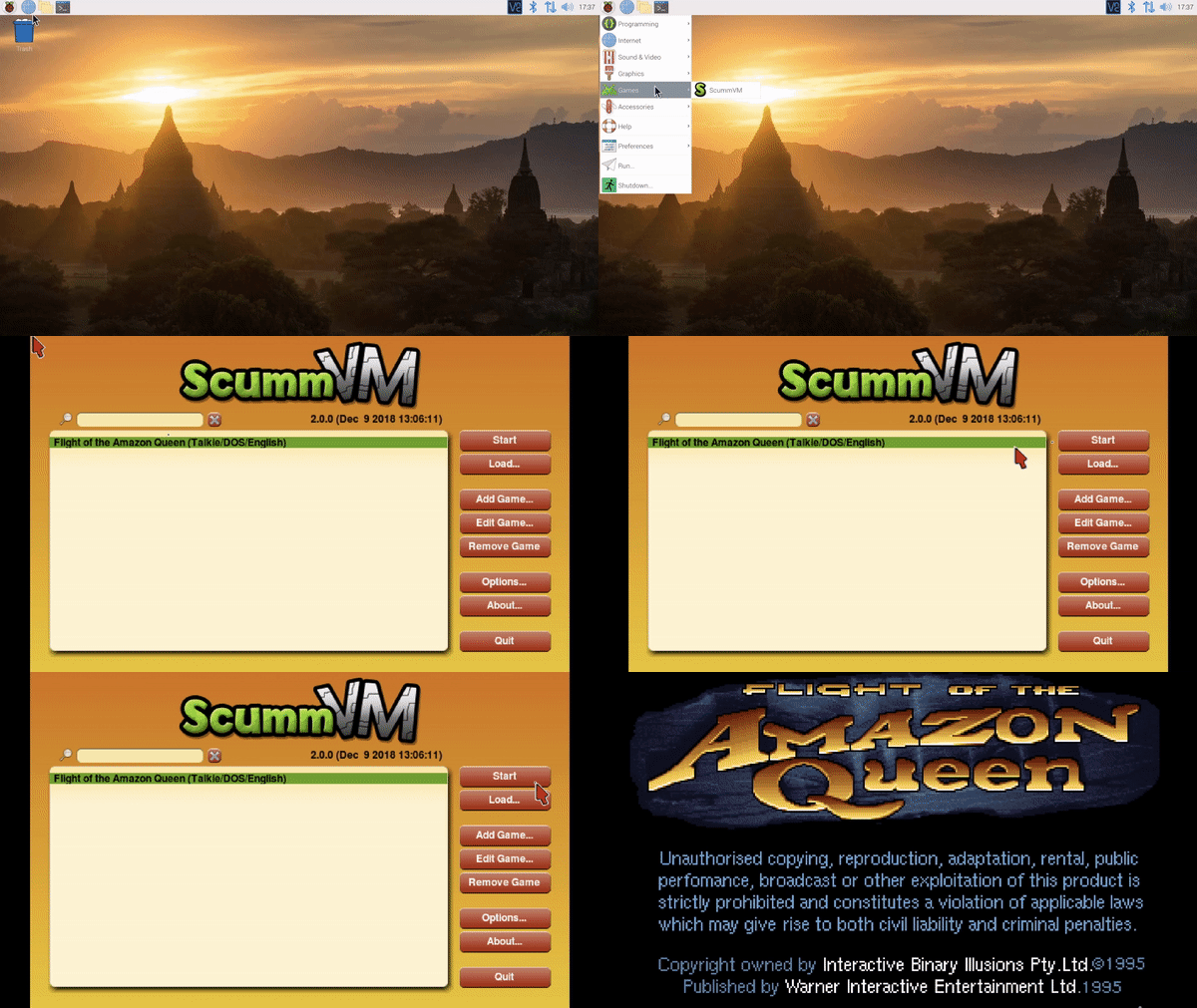
- From the Applications menu, select Games > ScummVM to open the Launcher window.

- In the Launcher window, click Add Game. This opens a file browser. To add multiple games at once, hold Shift while clicking Add Game.

- Use the file browser to locate the folder containing the game you wish to add. Double click on a folder to open it, and use Go up to go back up one level.
- Once you have selected the folder that contains the data files, click Choose.

- A dialog opens to allow configuration of various settings for the game. These can be reconfigured at any time, but for now everything should work at the default settings. Click Ok.

- Added games are now ready to launch!
Launching games
There are two ways to launch a game; from the Launcher and from the command line.
Launcher:
- From the Applications menu, select Games > ScummVM to start the Launcher.
- Select a game and click Start to play.
Command line:
- To launch a game with no additional options, run
scummvmfollowed by the game id. - To launch a game with options, run
scummvm, followed by any desired options, and then the game ID. For more information, see the [Command line options](advanced/command_line) page.
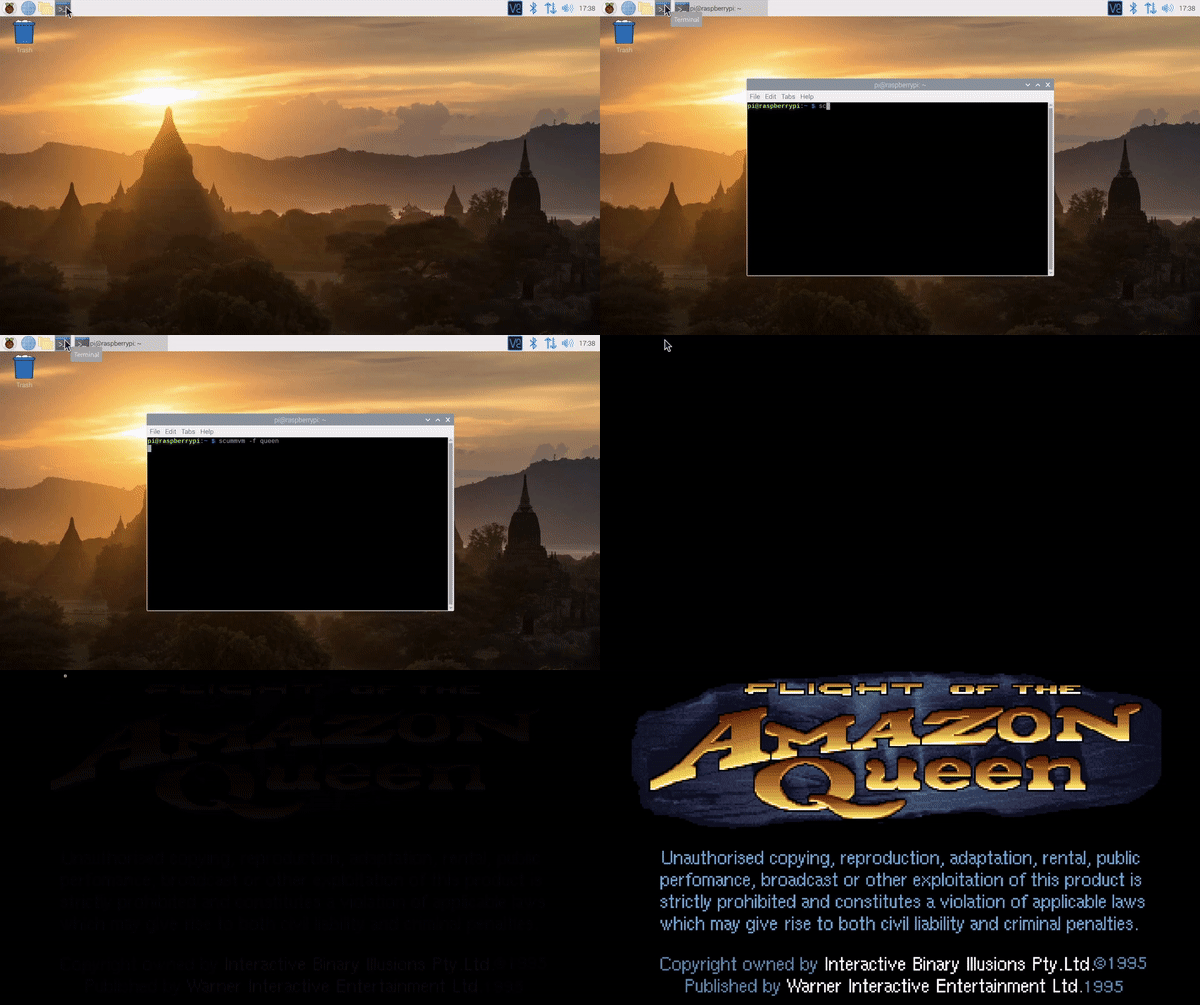
In the following example, Flight of the Amazon Queen will be launched in full screen:
scummvm -f queen